
The new version of Spotify allows you to save audio in offline mode on the Galaxy Watch lineup. The YouTube Music app also lets you download the songs on local storage. The Play Store for Wear OS has a couple of music streaming apps to play any tracks. There is another option to listen to songs on the smartwatch. No, we are not talking about YouTube videos that you can play using Samsung Internet Browser. The new option is you can load your favorite music to Galaxy Watch 4, Watch 5 & Watch 6.
That’s why Samsung has provided basic 16GB memory storage on the watch. There is enough space to transfer hundreds of songs or other audio to use them in an offline connection. This year, Samsung has improved its Samsung Music app to manage all the songs. In the same way, you can load your phone images to the Galaxy Watch. You may not use this function, but you need to know how you can transfer your files to the wearable. It is good to tell you how to transfer audio music to Galaxy Watch 4, Watch 5 & Watch 6.
1. Open the Galaxy Wearable app
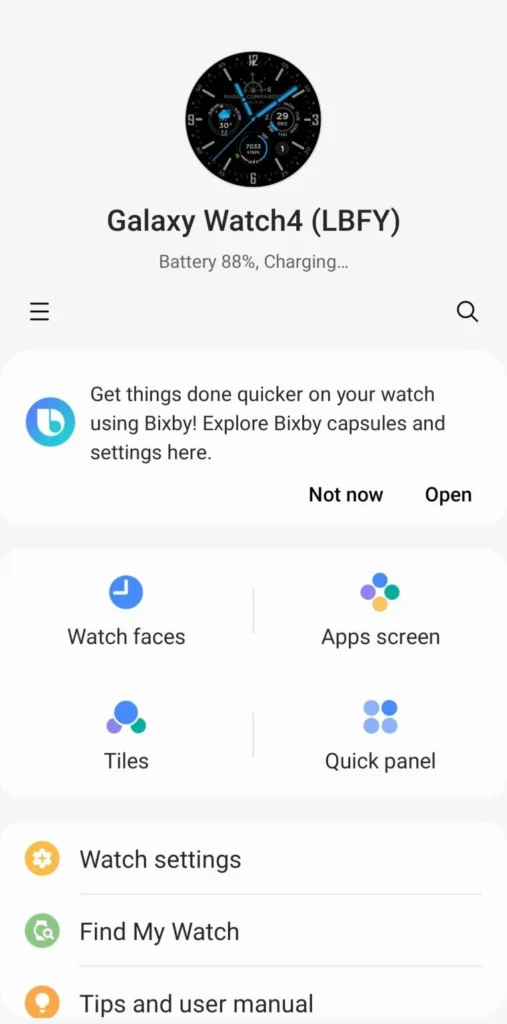
To load the files, you have to first pair your smartwatch with the Galaxy smartphone. To do that, first, download the Galaxy Wearable app, and pair it with it.
2. Tap on Watch Settings
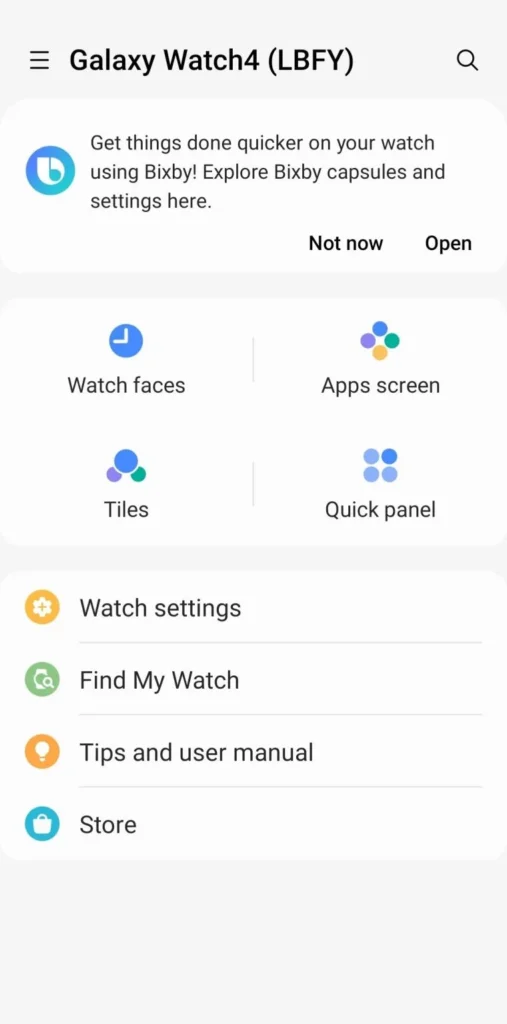
The Watch Settings option includes some crucial settings required to manage the smartwatch. The Watch Settings option is located below the side of the app. Tap on it to take one step further.
3. Next, select the Manage Content option
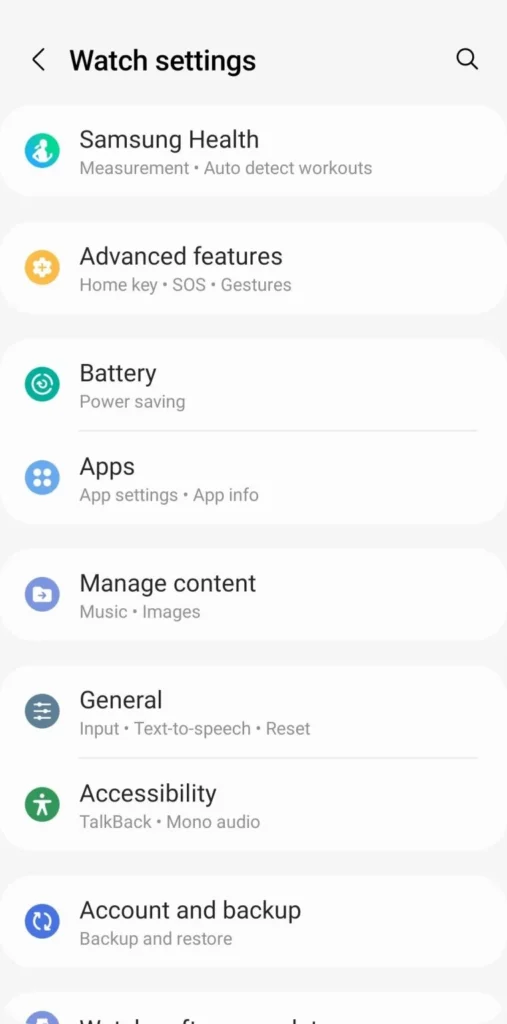
The next option you should open is Manage Content. It includes two options that you need to sync your files.
4. Click on Add Tracks
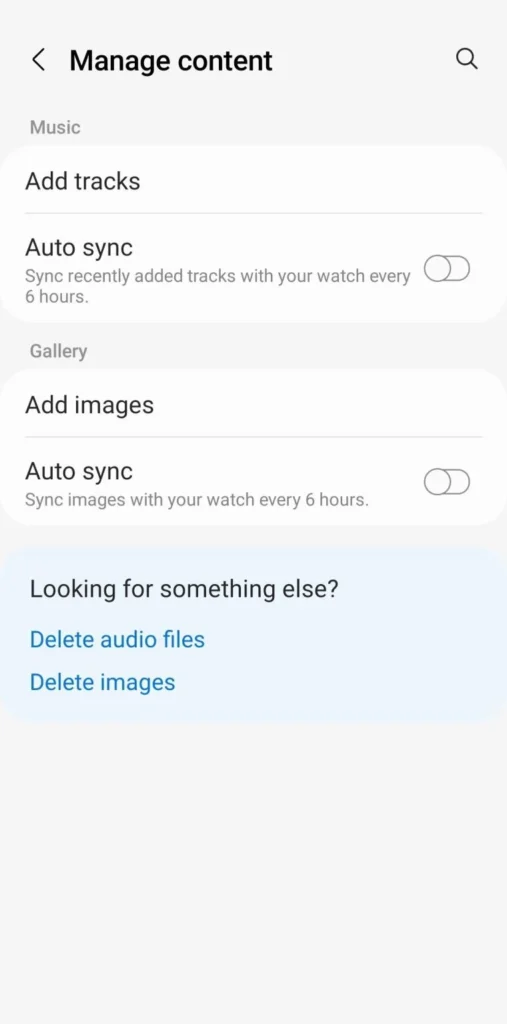
The Add Track option is available in the Music section. With the added tracks, you can transfer any of your songs on the watch.
5. Now Select Tracks
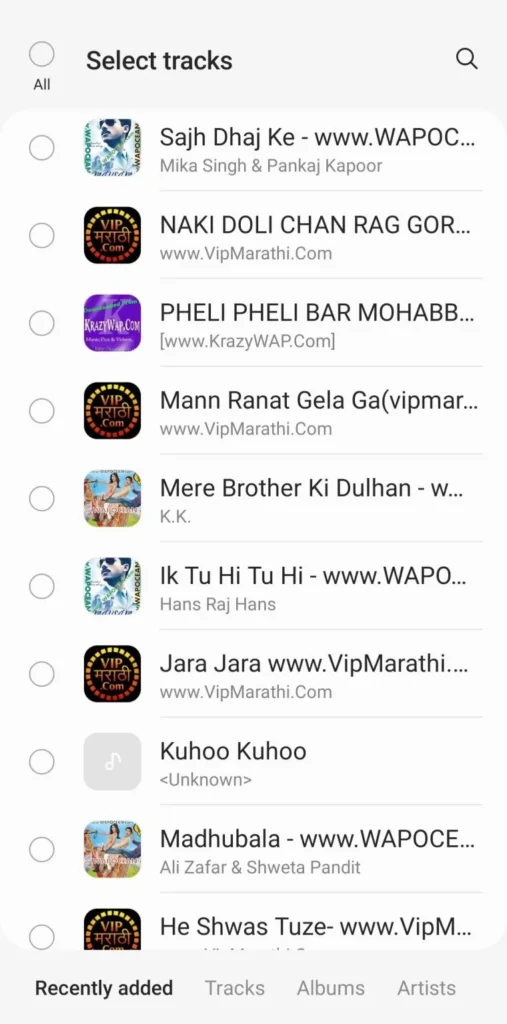
On this page, you have to choose which songs, podcasts, call recordings, or other audio files you want to transfer to your smartwatch.
6. Tap on Add to Watch

After you finished selecting audio music or other files, tap on Add to Watch option. You will see the option in the upper-right corner on the same page.
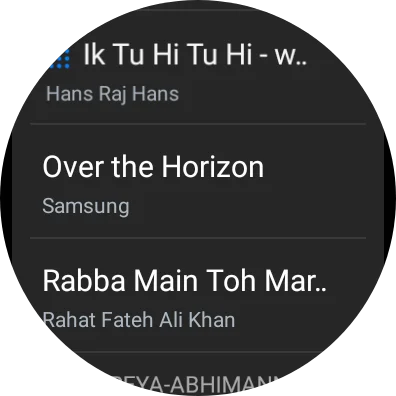
The time to transfer all audio music will depend on the number of files. It will take some time to sync all the music with the smartwatch, so relax for a few minutes. To see all the added music, open the Samsung Music app on the Galaxy Watch series. You can control the songs, play them, pause them, increase or decrease volume, and delete them from the same app.


You’re welcome! I appreciate your willingness to engage further. If you have any specific questions or topics you’d like to delve into, feel free to share them. Whether it’s about recent developments in technology, intriguing scientific discoveries, captivating literature, or anything else on your mind, I’m here to provide insights and assistance. Simply let me know how I can help, and I’ll be happy to assist you further!